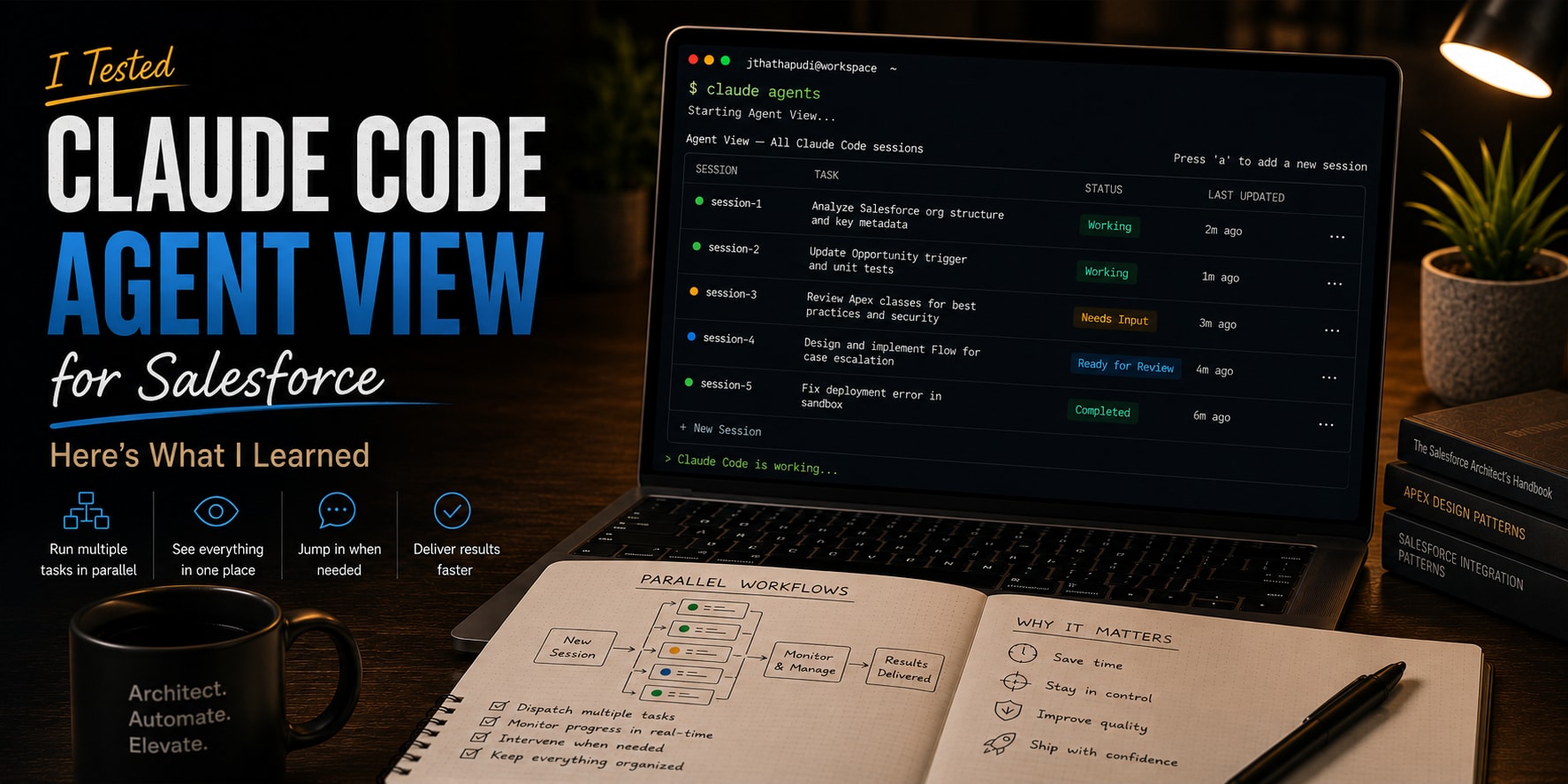
I tested the new Claude Code Agent View in the terminal from the perspective of a Salesforce architect, and the part that stood out was not that it can run more AI tasks.
It was that I could finally see the work.
When you start using AI agents seriously in Salesforce work, the problem changes. At first, the problem is, “Can the AI help me with this validation rule, trigger, test case, or deployment note?” After a while, the problem becomes, “Where did that task go, what is it doing, and does it need me?”
That is where Agent View becomes useful.
Before Agent View, my Salesforce workflow could get messy fast.
If I was working across five Salesforce projects, I would open five terminal tabs. If one project had multiple parallel tasks, I would open more tabs inside that mental workspace. One tab for checking metadata. One for the validation rule. One for the trigger. One for test notes. One for release cleanup.
That works for a while.
Then it becomes hectic.
You start asking basic questions:
- Which tab is still running?
- Which task already finished?
- Which one needs my input?
- Which Salesforce project was this session for?
- Did I already review that output?
Agent View gives you one terminal screen where you can dispatch, monitor, peek, attach, and step away without losing the thread.
Instead of managing a stack of tabs, you manage a visible list of sessions.
Agent View did not replace my work. It made the work easier to supervise.
The problem Agent View solves
Most Salesforce professionals I know do not work on one clean task at a time.
Even a normal Salesforce change can jump between a requirement, a field API name, a validation rule, a trigger question, a test note, a deployment check, and a stakeholder update. None of those tasks is huge by itself. The hard part is keeping the threads clear while they move at the same time.
But when all of that happens inside one long AI chat, it becomes messy quickly.
You ask one thing. Then another. Then you paste a log. Then you switch to a different problem. Then you come back and ask, “Where were we?”
The chat becomes a pile of context. The terminal becomes a pile of tabs.
Agent View gives you a cleaner model:
- each meaningful task can become its own session
- sessions can run in the background
- the dashboard shows what is working, blocked, done, or failed
- you can peek without fully switching context
- you can attach when a task needs deeper attention
- you can rename, pin, group, and filter sessions as the work changes
That is the shift.
It turns agentic work from one overloaded conversation and too many terminal tabs into a visible work queue.
So what is this thing?
Strip away the docs language and Agent View is one screen for background sessions: what is running, what is waiting on you, and what is done. Each session is still a full Claude Code conversation. It just does not have to stay attached to your terminal the whole time.
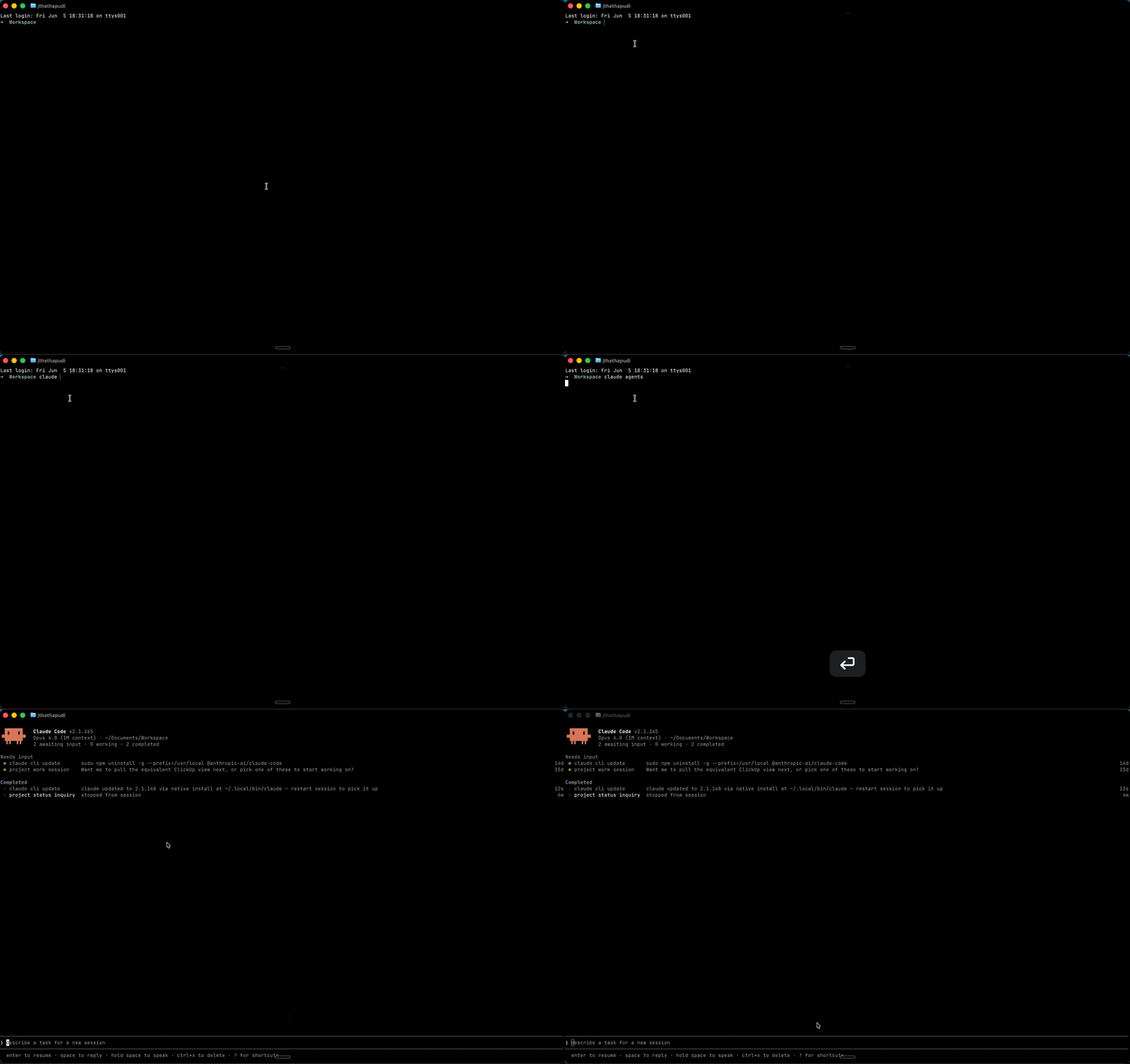
Before I opened it, I ran a quick update and version check:
claude update
claude --version
Agent View is still a Research Preview, and it needs Claude Code v2.1.139 or later. I am calling that out because the shortcuts and the layout can still change. I am not going to pretend this is a finished UI.
Then I opened it from the terminal:
claude agents
That is the whole idea. Start work, let it run, glance at the state, answer when it asks, and jump back in only when it actually needs you.
I came at it two ways.
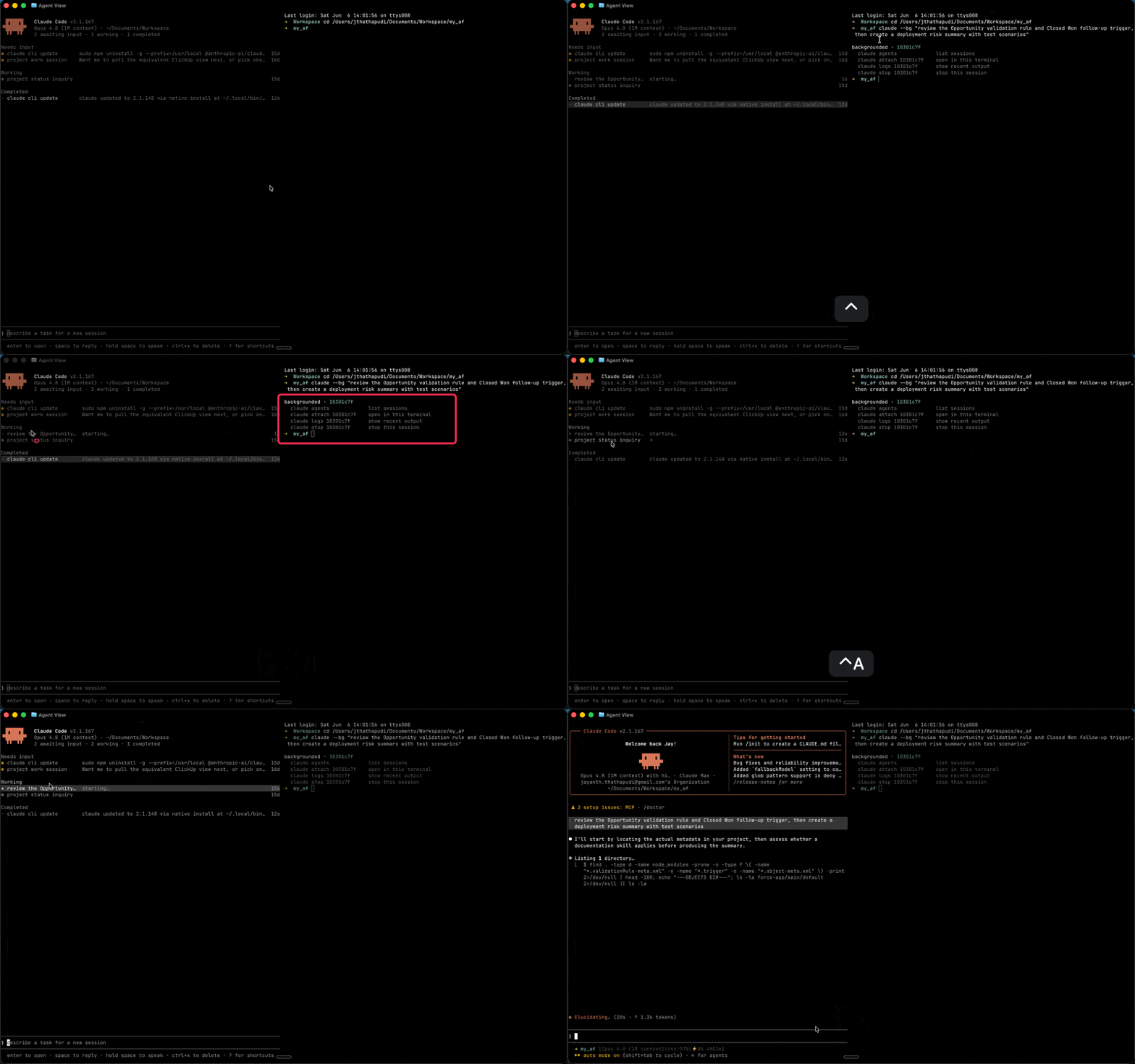
When I was already in the dashboard, I dispatched tasks straight from the input line.
And when I already knew the task before opening anything, I started it from the shell:
claude --bg "review the Opportunity amount validation rule and Account rating trigger, then create a deployment risk summary with test scenarios"
Same result either way. The work goes to the background, and the dashboard keeps the thread.
What I actually used
Agent View has a long list of shortcuts. Press ? and the whole thing shows up. I dropped the full list at the end of this post too, so keep it as a cheat sheet.
I ignored most of them.
Only a few things mattered during the test, and they were less about the keys and more about what they let me do: see the state of every session, peek without losing my place, and keep the dashboard from turning into noise. Here is how each one played out.
1. Session states and row summaries
Each row shows where a session is in the workflow.
That sounds small, but it changes how you manage AI work.
Instead of opening every conversation to check progress, you can scan the dashboard:
Working: the agent is still doing the taskNeeds input: the agent is waiting for your decision or permissionIdle: the session has nothing to do and is ready for your next promptCompleted: the task finishedFailed: something went wrongStopped: you stopped the session
For daily work, this felt like a quick triage view. I did not need to remember which tab was doing what. I could see the status in one place.
2. Peek, reply, attach, and detach
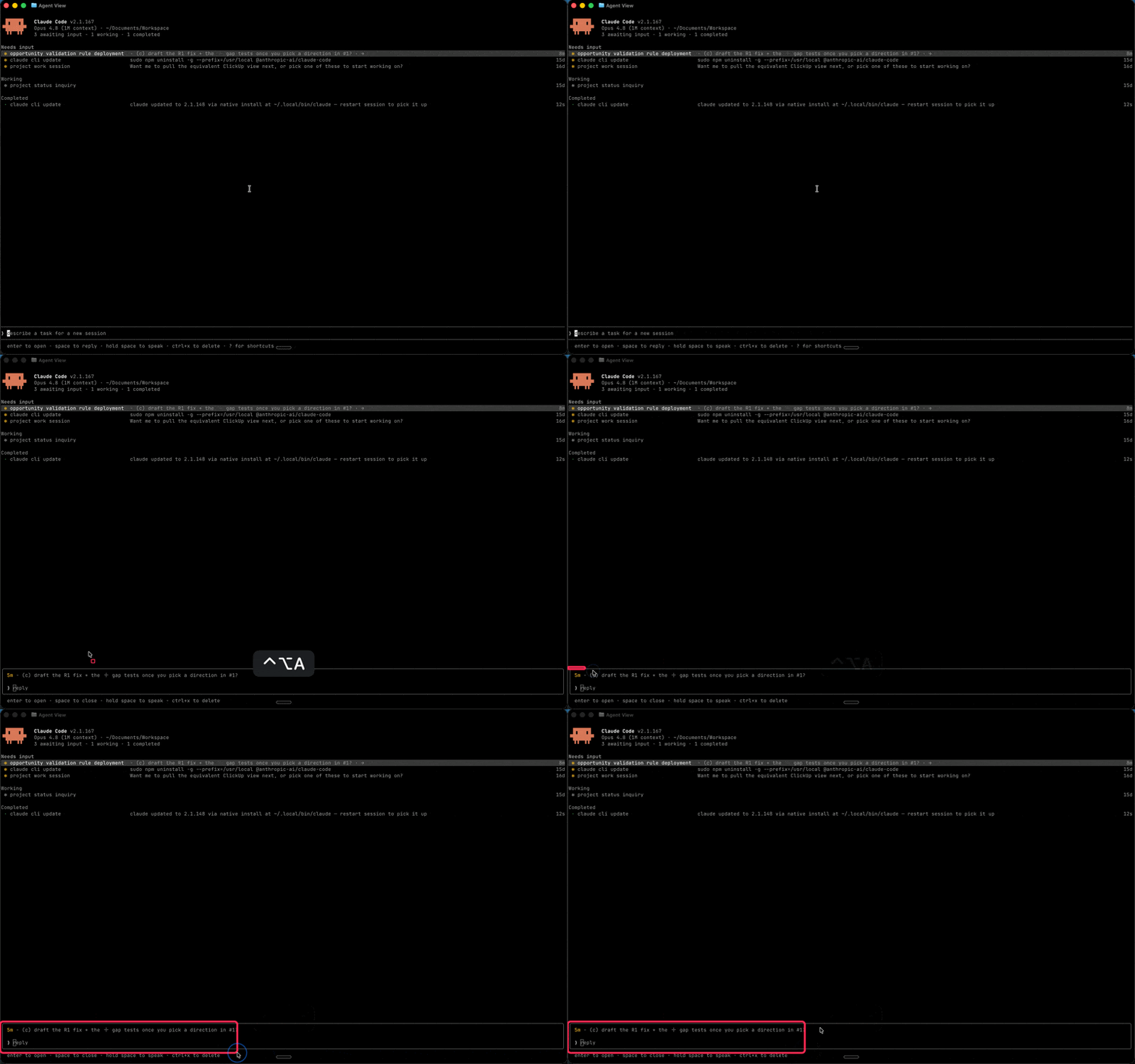
Select a row and press Space to peek.
The peek panel shows the latest useful output or the question the session is waiting on. If the answer is simple, you can reply without fully attaching to the session.
That matters because attaching is a context switch.
Peek is lightweight. Attach is deeper.In this Salesforce test, peek felt right for small decisions:
- “Use option A or option B?”
- “Can I run this command?”
- “Which file should I inspect next?”
- “Do you want a summary or a full rewrite?”
If the task needs judgment, I attach. If it just needs a quick answer, I reply from peek.
When you need the full conversation, attach to a session with Enter or →.
That takes you into the session like a regular Claude Code conversation. You can read the context, ask follow-up questions, inspect files, and guide the work.
When you are done, detach and return to Agent View. That is the part that makes the workflow feel manageable: you can move between focused sessions without losing the big picture.
3. Pin, rename, group, and filter
Once I had more than a few sessions, organization started to matter.
The controls that stood out were Ctrl + T to pin or unpin an important session, Ctrl + R to rename a session, and Ctrl + S to switch grouping between state and directory.
The directory view is especially useful when you work across multiple projects. Press Ctrl + S to switch grouping between state and directory. State view answers, “What needs my attention?” Directory view answers, “What is happening in this project?”
That matters when you have multiple Salesforce repos or client projects open. Instead of keeping separate terminal tabs just to remember project context, you can scan sessions from one place.
Renaming matters more than it looks. The auto-generated names are vague, and Ctrl + R fixes that in a second — clear names keep the dashboard readable instead of a wall of generated text. More on how much that mattered when I ran the real test.

4. Dispatch from different places
If I am already in a project, I can dispatch from the Agent View input. If I am inside a Claude Code conversation, I can send it to the background with /background. If I know the task before opening Claude Code, I can start it from the shell with claude --bg.
The detail I like most for multi-project work is directory context. If I open Agent View from a parent workspace that contains several Salesforce repos, I can still make the target project explicit in the session prompt.
If I want Agent View to run a shell command instead of an agent prompt, I can start the dispatch input with !.
One detail from the docs is also worth calling out: background sessions that edit files are isolated in git worktrees under .claude/worktrees/.
For Salesforce professionals, that matters.
If one session is reviewing a validation rule and another is experimenting with an Apex trigger, I do not want both writing into the same working copy. Worktree isolation does not remove the need for review, but it makes parallel work easier to trust.
A simple Salesforce example
For this blog, I kept the Salesforce demo simple.
No complex architecture. No five-agent team. No role map.
Just two familiar tasks:
- Create or review a validation rule.
- Create or review a small trigger.
I reused the same kind of examples I have used in earlier Salesforce AI posts:
- When an Opportunity moves to Negotiation/Review, the Amount should be greater than $1,000.
- When an Account has Annual Revenue above $1M, the Rating should be set to Hot.
That gives us one configuration-style task and one code-style task.
In the old workflow, this was three tabs. One to think through the validation rule. One for the trigger. One for test notes.
This time I dispatched them as two separate sessions instead:
Review this Salesforce requirement and propose a validation rule for Opportunity.

Rule name: Require_Amount_for_Negotiation
Requirement: Amount must be greater than $1,000 when Stage equals "Negotiation/Review".
Error message: Opportunity amount must be at least $1,000 to enter negotiation stage.

Include the validation formula, field assumptions, error placement, and test scenarios.
Review this Salesforce requirement and propose a small bulk-safe Apex trigger approach.

Requirement: When Account Annual Revenue exceeds $1,000,000, set Account Rating to "Hot".

Use a trigger-handler pattern. Include bulkification notes, edge cases, and test class scenarios.
Now the work was visible.
One session worked the validation rule. The other worked the trigger. I watched both without the two conversations bleeding into each other.
This is the simple version of agentic development I think most Salesforce professionals can use immediately.
Not "let AI build the whole project."
More like: give each small Salesforce task a clear session, then supervise the outputs.
What actually changed for me
The feature only clicked once I stopped reading about it and pointed it at work I already understood.
I dispatched both sessions and walked away. That was the test.
One was chewing on the validation rule. The other was chewing on the trigger. I did not babysit either one.
I watched both without opening either
When I came back to the dashboard, I did not have to remember anything. The rows told me. One was still working. One was waiting on me.
That is the part that got me.
In my old setup, "waiting on me" was invisible. It lived in tab four, behind a scroll, in a conversation I had half-forgotten. Here it was a row with a state.
The trigger session had stopped on the one question that actually mattered:
Should the Rating change only when Annual Revenue changes, or every time the Account is edited?That is a real Salesforce decision. Recursion, bulkification, the difference between a clean trigger and a support ticket three sprints later.
I answered the small stuff from peek
Here is what surprised me: I answered that from peek. I never opened the session.
Peek was enough for the calls that did not need the full transcript:
- Should the threshold be greater than $1,000, or greater than or equal to?
- Should the error sit on the Amount field or at the top of the page?
- Should existing Rating values get overwritten, or only the blank ones?
- Insert and update, or update only?
Each of those is a one-line answer. None of them was worth a context switch. I replied, the session kept moving, and I stayed on the dashboard.
That is where Agent View saved me the most energy.
I renamed everything
The AI-generated session names were vague, so I renamed each one to the outcome I cared about — Opportunity amount validation, Account rating trigger, UAT checklist for revenue rules.
Small habit. Big difference. The dashboard stopped looking like a process list and started reading like my actual work.
I pinned the checkpoint
Once both sessions had something usable, I dispatched a third:
Create a concise validation checklist for the Opportunity amount validation rule and Account rating trigger, including happy path, negative path, bulk update behavior, permissions, and post-deployment smoke test.
Then I pinned it.
That pinned checklist became the thing I checked against before anything moved forward.
Completed is not done
There is a trap in this, and I walked right at it.
When a row flips to Completed, your brain wants to believe the work is done. It looks done. Green, finished, off your plate.
But Completed only means the agent stopped talking. It does not mean the validation rule is correct, the trigger is bulk-safe, or the test class covers the negative path.
I caught myself ready to move past a Completed session without reading it. That is the exact moment Agent View turns from helpful to dangerous.
So I gave myself one rule. A Completed row is not a finished task. It is a task that is ready for review.
Final Thoughts
After testing Agent View, my takeaway is simple: it is less about making Claude Code do more, and more about making the work easier to see.
That matters in Salesforce work because even a small change can split into multiple threads. A validation rule needs field assumptions. A trigger needs edge cases. A test plan needs enough detail to be useful.
Agent View helped because those threads did not have to live in one long conversation.
The validation-rule session moved on its own. The trigger session asked its question. I peeked, answered, and came back to the dashboard without losing the bigger picture.
For Salesforce, the output still needs a real review: formula logic, record type behavior, bulkification, test coverage, permissions, deployment risk, and rollback thinking.
But as a way to supervise parallel AI work, this felt useful.
The rule I keep in mind is simple: Agent View is supervision, not autopilot.
That is the part I want to keep testing.
The full shortcut cheat sheet
I only leaned on four of these during the test. But Agent View has more, and they are worth keeping somewhere you can find them. Here is the full list as a reference.
| Shortcut | What it does | When it helps |
|---|---|---|
↑ / ↓ | Move through sessions | Scan what is running, blocked, or done |
Space | Peek into the selected session | Check a question or latest output without fully switching context |
Enter / → | Attach to the selected session | Review the full conversation or continue detailed work |
← | Detach back to Agent View | Return to the dashboard after reviewing a session |
Shift + Enter | Dispatch and attach | Start a task and immediately work inside that session |
Ctrl + T | Pin or unpin a session | Keep release checks, open questions, or review items visible |
Ctrl + R | Rename a session | Turn vague session names into clear work outcomes |
Ctrl + S | Switch grouping by state or directory | Move between “what needs attention?” and “which project is this?” |
Ctrl + G | Open in your editor | Jump into files when a session needs code or metadata review |
Ctrl + X | Stop or delete a session | Clean up stale work or stop something going the wrong way |
Shift + ↑ / Shift + ↓ | Reorder sessions | Keep the most important active work near the top |
Esc | Close peek, clear input, or exit a panel | Back out without attaching or changing context |
Ctrl + C | Clear input, then exit on a second press | Quickly reset or leave Agent View |
? | Show all shortcuts | Refresh the latest shortcut list as Agent View changes |